Teams, Brands, and Navigation
Understand what belongs to your team versus a brand, and how to move between them.
AdGreetz has two workspace levels. Mixing them up is the most common reason people generate work in the wrong place or cannot find a result.
Team workspace
The team is the account you share with colleagues. It owns:
- Team members and roles
- Credits, usage, and billing
- The team Media Library
- Tools (Image Studio, Video Generator, and the other utilities) and Playground surfaces (Freeform, Video Ad, Product Ad, UGC Ad, Static Ad, Rich Media, Carousel)
- The Brands list
Open it from the workspace switcher, or choose Back to workspace from inside a brand.
Brand workspace
A brand is one business you create ads for. Its home opens on the prompt box, Describe the ad you want. Set Format, Sizes, and Goal, then Generate. Add performance insights is optional extra context for that brief. Or start from a format sits under the box and opens that format's studio.
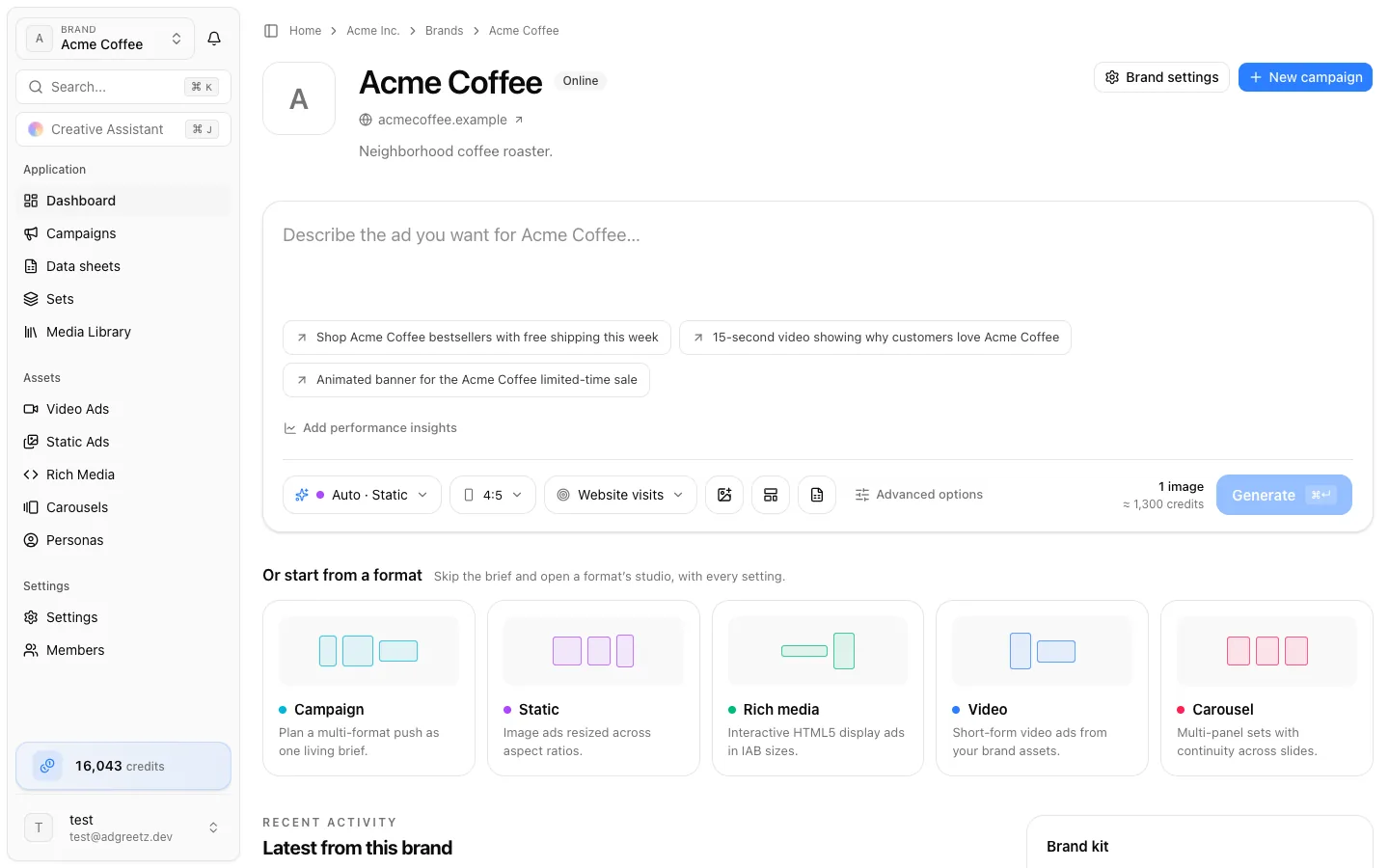
It also owns:
- Brand details, picture, and guidelines
- Campaigns and data sheets
- Brand Media Library
- Generated video, static, rich media, and carousel ads
- Personas
- Publishing connections (YouTube, Meta, Instagram, TikTok)
- Brand members (people from the team who can work in this brand)
Open a brand from Brands, or switch brands from the brand selector in the sidebar.
How to tell where you are
| Clue | Meaning |
|---|---|
| Sidebar shows Brands, Playground, and team Settings | You are in the team |
| Breadcrumbs end in Brands › the brand name, the sidebar selector is labelled Brand, and the page shows Brand settings | You are inside a brand |
| Brand selector shows the current brand name | Creations will attach to that brand |
Warning: Always confirm the current brand name before you generate, upload, or connect a publishing account. Connections belong to the current brand, not every brand on the team.
Typical paths
- Start work for a known brand: Team → Brands → open the brand → Describe the ad you want, or a card under Or start from a format.
- Explore a format first: Team → Playground. Playgrounds can attach the result to an existing brand or create a new one.
- Generate or refine one asset: Team → Tools. See Tools.
- Invite a colleague: Add them to the team first, then add them to the brand. See Manage brand members.